
 David Joseph
Did you know the average American home has over seven electronic devices in the living room? We often face a pile of plastic clickers, each for a single task. Simplifying your entertainment setup is now essential for a calm home.
Mastering your TV remote control can turn these gadgets into one powerful tool. We’ll show you how to make your media experience smoother and control smart-home devices easily. Our guide covers setting up to advanced tricks that save time.
Whether you’re fixing connectivity issues or looking for better care, we’ve got you covered. Let’s make your viewing area a seamless, organized hub of modern tech.
Key Takeaways
- Consolidate multiple devices into one universal unit to reduce clutter.
- Follow simple setup steps to sync your hardware with your primary interface.
- Learn essential navigation shortcuts to speed up your daily media browsing.
- Perform regular maintenance to ensure your buttons and sensors remain responsive.
- Use basic troubleshooting techniques to resolve common signal or pairing problems.
Understanding Your Remote Control: Basics and Features
We often overlook our remotes, but they are complex tools. Knowing how they work can make your home theater experience better. It helps you avoid frustration and control everything easily.
Different Types of Remote Controls
Most people use a TV remote control that comes with their TV. These remotes use infrared signals and need a clear view to work.
There are also universal remotes for managing different devices. For more control, a programmable remote lets you create complex commands with one button.
Common Buttons and Their Functions
Remotes may look different, but they all have similar buttons. The power button is usually at the top. The navigation cluster helps you move through menus.
Controls for volume and channel are common. Modern remotes also have buttons for playing, pausing, rewinding, and fast-forwarding. These are great for streaming your favorite shows.
Programming Your Remote Control
Setting up a new remote is easy. Most brands offer three ways to connect it to your devices.
- Code-based entry: You enter a code from the manual that matches your device.
- Code-free auto-programming: The remote tries different signals until it finds the right one.
- Learning mode: You teach the new programmable remote commands from your old one.
Choosing the right method depends on your devices. Once paired, your TV remote control will make your entertainment more efficient.
Setting Up Your Devices for Smooth Operation
Getting your devices ready for a smooth connection is key to controlling your home media. Make sure your remote control for TV or media player has new batteries. This prevents signal loss during setup.
Connecting Devices to Your Remote
Using a wireless remote control or infrared remote control starts with a handshake. Point the controller at your device’s sensor for a clear signal. Press a “setup” or “pair” button until a light shows it’s ready.
Syncing Multiple Devices
Dealing with many devices needs a plan. Group them by type for easier setup. Universal controllers let you set up different modes for each button, making switching easy.
Troubleshooting Connection Issues
Don’t worry if devices won’t connect. Issues like wrong codes or blockages are common. Try moving closer and re-entering the code. Sometimes, restarting the device fixes problems.
| Connection Type | Primary Benefit | Setup Difficulty |
|---|---|---|
| Infrared (IR) | Reliable and standard | Low |
| Radio Frequency (RF) | No line-of-sight needed | Medium |
| Bluetooth | High range and speed | Moderate |
Organizing Your Remote Control Collection
Keeping track of every remote control in your house is easy with a simple plan. When remotes are scattered around, finding them can take a lot of time. Having a consistent spot for your electronics keeps your space tidy and ready for use.
Keeping Remotes in One Place
Designate a single spot near your main viewing area for remotes. A decorative tray, a dedicated caddy, or a wall-mounted organizer works well. Putting your remote control back in its place after each use helps avoid frustration.
Labeling Remotes for Easy Access
Many homes have several devices that look alike, causing confusion. Labeling each remote with a small, clear tag helps. This makes it easy for everyone to know which remote goes with which device.
Color-coded stickers can also help. They match a remote to its TV or sound system. This makes it simple to find the right remote without trying each one. Here are some storage ideas to keep your remotes organized.
| Storage Solution | Best For | Primary Benefit |
|---|---|---|
| Decorative Tray | Living Room Tables | Keeps items contained |
| Wall-Mounted Rack | Small Spaces | Saves surface area |
| Labeled Caddy | Multiple Devices | Easy identification |
| Magnetic Strips | Side of TV Stand | Quick access |
Maximizing Your Remote’s Functionality
We often overlook the powerful capabilities hidden within our everyday handheld controllers. By moving beyond simple channel surfing, we can turn a standard Remote control into a central hub for our entire home environment. Exploring these advanced options allows us to streamline our daily routines significantly.
Using Custom Settings and Shortcuts
Most modern devices allow us to program macros that execute multiple commands with a single press. For instance, we can create a “Movie Night” shortcut that dims the lights, lowers the thermostat, and activates our smart window blinds simultaneously. A high-quality programmable remote makes these complex sequences feel effortless.
We can also set timers to ensure our devices power down when we are not using them. This simple habit saves energy and extends the lifespan of our electronics. Customizing these shortcuts helps us reclaim time that we would spend adjusting individual settings.
Accessing Hidden Features
Many users are unaware that their smart remote control often houses deep-menu settings for advanced calibration. We can access these hidden features to fine-tune audio output or adjust display brightness for specific times of the day. Exploring these menus often reveals options that significantly improve our overall user experience.
Some devices offer gesture controls or touch-sensitive surfaces that remain inactive until enabled in the settings. By activating these features, we gain more intuitive ways to navigate our media libraries. It is worth spending a few minutes browsing the manufacturer’s manual to uncover these secret functions.
Regularly Updating Software
To keep our devices running smoothly, we must prioritize regular software updates. Manufacturers frequently release patches that improve connectivity and add compatibility for new hardware. Keeping your programmable remote firmware current ensures that all advanced features remain reliable and secure.
If we neglect these updates, we might experience lag or compatibility issues with newer smart home gadgets. We recommend checking for updates at least once every few months to maintain peak performance. This proactive approach guarantees that our Remote control setup remains efficient and responsive.
| Feature Type | Standard Remote | Smart Remote Control |
|---|---|---|
| Device Syncing | Limited | Multi-Device |
| Macro Support | None | Advanced |
| Software Updates | Not Available | Automatic |
| Custom Shortcuts | None | Fully Configurable |
Ensuring Longevity and Maintenance
Keeping your home entertainment gear in top shape is key. A few minutes of care each day can prevent problems. This way, your remote control stays in perfect condition.
Regular checks help avoid the hassle of broken buttons or dead batteries. It’s all about staying ahead of issues.
Changing Batteries and Power Management
Power issues are the top reason for device failure. Check your batteries every few months. This stops leaks and corrosion.
If you won’t use your remote control for a while, take out the batteries. This prevents damage.
Choose high-quality alkaline batteries for better performance. Always replace the entire set at once. This keeps voltage even and protects your remote.
Cleaning Your Remote Control
Cleaning your device is crucial for both health and function. Dirt and oils can make buttons stick or not work. Start by removing the batteries.
Use a soft cloth with 70 percent isopropyl alcohol to clean. Avoid using too much water to prevent damage. For a deeper clean, use diluted bleach but wear gloves and work in fresh air.
For tight spaces, use a cotton swab. Never spray cleaners directly on the device. Apply the solution to your cloth first.
Enhancing Your Viewing Experience
Improving your home entertainment starts with how you use your devices. We often use many handsets to watch a movie or listen to music. By using one tool, we make our home more fluid and enjoyable for everyone.
Using Universal Remotes for Convenience
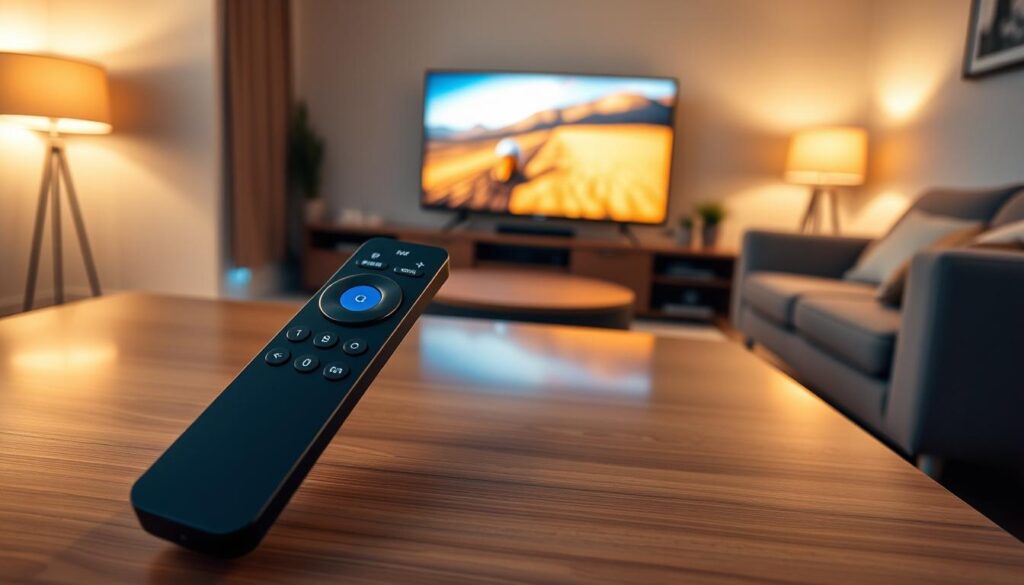
A universal remote is like the brain of your media world. Instead of having separate remotes for your TV, soundbar, and gaming console, one device can do it all. This makes your coffee table less cluttered and your daily routine easier.
Today’s wireless remote control also connects to smart homes. You can control lights or the thermostat without leaving the couch. This makes your home theater a place of calm, not a tech problem.
Voice Control Options
Many devices now have built-in microphones for voice commands. Pairing a smart remote control with a voice assistant lets you search or change volume with your voice. This hands-free functionality is great when you’re busy or don’t want to mess with menus.
Adding voice control to your wireless remote control makes managing audio easy. You can switch between media or adjust speakers with just a few words. This makes your universal remote a key part of modern life, offering a smart and responsive experience for all your media needs.
The Role of Remote Control Apps
The remote control app has changed how we use our screens. It lets us replace old hardware with new software on our phones. This makes our living rooms simpler and more fun.
Popular Apps for Smartphone Control
Many companies now offer special apps for controlling TVs with your phone. For example, the Roku app, Google TV, and LG ThinQ make it easy to use your phone to change channels or adjust the volume.
These apps often find your devices automatically. Once they do, your phone becomes a powerful tool for streaming and adjusting settings.
| App Name | Primary Use | Key Feature |
|---|---|---|
| Roku | Streaming Players | Private Listening |
| Google TV | Android/Smart TVs | Voice Search |
| LG ThinQ | Smart Appliances | Dashboard Control |
Benefits of Remote Control Apps
Using a remote control app is way better than old remotes. It’s more convenient and easy to use. You don’t have to search for a lost remote anymore because your phone is always with you.
“The best technology is the kind that disappears into the background, making our daily tasks feel effortless and intuitive.”
These apps also make it easy for everyone in the house to use the same device. You can control your lights and media with just one app. This saves time and makes things simpler.
Adjusting Settings for Comfort
We can make our daily life better by setting up our remotes just right. By tweaking our devices, we turn a basic TV remote control into something that really gets us. It’s not just about using it; it’s about making our space perfect for chilling and fun.
Calibrating Your Remote for TV Preferences
Today’s tech lets us change how our remotes work. We can make the volume smoother and set up quick links to our favorite shows. This means we spend less time searching and more time enjoying what we watch.
This personal touch isn’t just for TVs. We can also control lights, temperature, and blinds with our remote control for TV. It all comes together to make our home more comfortable.
Accessibility Features
Technology should be for everyone, no matter their needs. Many devices now have settings for bigger text, clearer screens, and easier buttons. This makes sure everyone can use their entertainment without hassle.
Voice control is also key for making things easier. It lets us use our voices instead of small buttons. When we add voice control to TV settings, we make our space even more user-friendly. Here’s how these changes help us enjoy our tech more.
| Feature Category | Standard Setting | Customized Setting |
|---|---|---|
| Button Layout | Complex/Crowded | Simplified/Essential |
| Volume Control | Fixed Increments | Adaptive/Smart Levels |
| Input Access | Manual Selection | One-Touch Shortcuts |
| Interface | Default Font | High-Contrast/Large Text |
Tips for Managing Multiple Devices
Managing many electronic devices in a modern home can be tough. We often have a bunch of remotes for different devices. Using a universal remote helps clear up this mess and makes our homes more organized.
Combining Controls for Multiple TVs
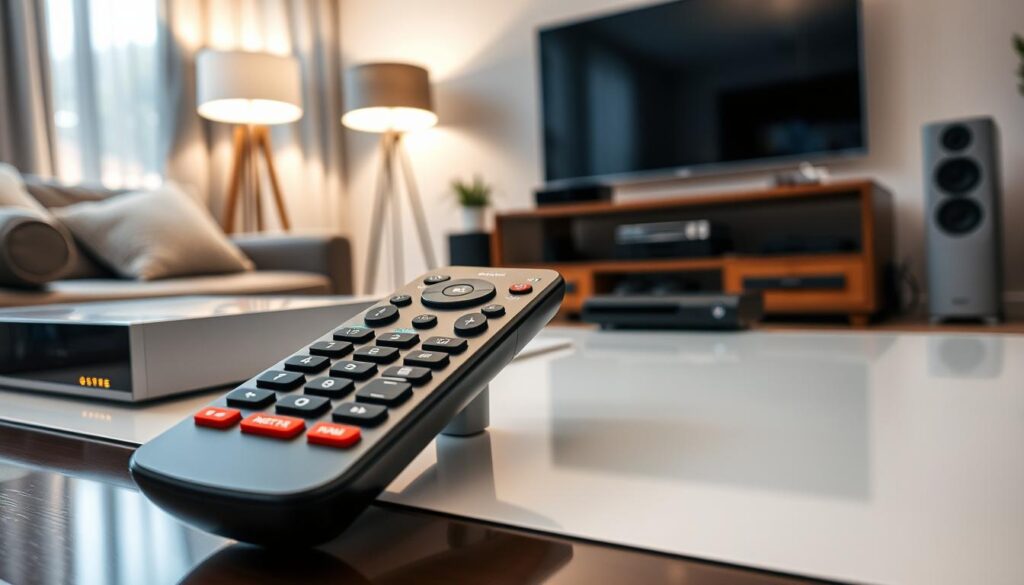
Having TVs in different rooms means you need to assign buttons for each. Modern systems let you program activity modes. This way, you can switch between devices with just one touch. Clearly labeling your controls helps everyone know what each button does.
Looking for the right universal remote? You can find expert advice on the best one for you. This saves time and avoids the hassle of searching for the right remote when you just want to relax.
Solutions for Home Theater Systems
A home theater needs a strong connection system. A good wireless remote control is key for your audio-visual setup. Choose a smart remote control that works well with different brands and systems.
After picking your gear, make sure all connections are secure. Then, test each device separately to make sure everything works right. A well-organized wireless remote control setup makes your entertainment area easy to use. A smart remote control makes complex tasks simple for everyone in the house.
Teaching Family Members to Use the Remote
We think everyone in your home should know how to use the remote control. Sharing our knowledge helps avoid frantic calls during movie nights. By teaching a few key actions, we make technology easy for all ages.
Simple Instructions for All Ages
We recommend focusing on six main functions. These are power, volume, channel selection, input switching, playback controls, and menu navigation. Learning these basics lets family members handle most tasks without needing to be tech experts.
Show these actions one at a time. Patience is key when teaching others to switch between devices. Encourage them to practice while you’re there to help.
“Simplicity is the ultimate sophistication in design and user experience.”
Creating a User-Friendly Guide
A guide, written or visual, is helpful when you’re not around. Labeling buttons with simple terms or using color-coded stickers helps a lot. You might make a card with steps for switching inputs, as this is often confusing.
Include examples for different devices in your guide. For example, show which button opens the home screen on your TV versus your gaming console. This way, your remote control stays a source of fun, not stress.
| Action | Button Icon | Primary Purpose |
|---|---|---|
| Power | Circle with Line | Turns device on or off |
| Volume | Plus/Minus Signs | Adjusts audio levels |
| Input | Square with Arrow | Selects source device |
| Navigation | Directional Arrows | Moves through menus |
By giving clear, easy-to-follow instructions, we empower our families. A well-informed household is a happy one. Everyone can enjoy their favorite shows with ease using the remote control.
Troubleshooting Common Remote Control Problems
Even the most reliable home entertainment systems can sometimes have technical issues. These problems can make watching your favorite shows frustrating. But, most issues are simple and can be fixed with a few steps.
Dealing with Unresponsive Buttons
First, check if there are any physical obstructions. Dust or sticky stuff can block the buttons. Cleaning the surface with a soft cloth and a bit of isopropyl alcohol can help.
If cleaning doesn’t work, the problem might be with the batteries. Even if the remote seems to have some power, weak batteries can cause issues. Try replacing the batteries with new ones.
“Technology is best when it brings people together, but it is only as good as the tools we use to manage it.”
Fixing Connectivity Issues
Connectivity problems often happen when something blocks the signal or the device is in the wrong mode. Make sure nothing is in the way between your remote and the sensor. If the signal is still weak, try syncing your device again using the manufacturer’s instructions.
Here are some steps to fix issues:
- Direct Code Entry: Try entering the specific brand code from your manual.
- Brand Code Search: Use the automatic search to find the right code.
- Device Mode Check: Make sure you’re in the right mode (like TV or Cable) before sending commands.
Always test different functions after setting a new code. Don’t just check if the remote turns on. Try volume, input switching, and menu navigation. This ensures your infrared remote control is fully synced and ready for use.
Benefits of Understanding Your Remote Control
Learning about your devices can change your living space. It makes your home a more relaxed place. Technology then works for you, not against you.
Gaining Total Command Over Your Devices
A good remote control connects you to your media. Knowing how to use it means no more fighting with menus. You can easily switch inputs, adjust the volume, and use streaming services like Roku or Apple TV.
Simplifying Your Daily Media Routine
Adding a smart remote control app to your daily routine is smart. It turns your phone into a control center for your home theater. This reduces clutter by using one app instead of many remotes.
Try out different settings to see what works for your family. Whether it’s a physical remote or an app, aim for a smooth viewing experience. This way, you can enjoy your favorite shows without distraction.